Two different ways to build the first screen
Search for a custom GoHighLevel dashboard and you will run into two different ideas. One is a dashboard you build with HighLevel’s own widgets. The other is a dashboard built outside HighLevel and displayed inside the account through an embed.
Both can sit in the CRM. Both can be useful. The real question is how much of the reporting experience you want to assemble yourself, and what you want the client to see when they open the account.
If you have ever finished a CRM build and then spent another afternoon moving dashboard widgets around, this is a familiar decision. Let’s work through it without pretending one option is right for every account.
What the native dashboard builder already does
HighLevel’s native dashboard builder supports multiple dashboards, configurable widgets, themes, and scheduled reports. Its official dashboard guide covers the creation and editing workflow. So yes, you can build a useful reporting view directly in HighLevel.
That is a sensible starting point when your team knows exactly which widgets it needs and is comfortable arranging the view. For example, an internal sales manager may want a focused working screen rather than the same overview you hand to a business owner.
The work is in the decisions: which metrics belong together, which filters should apply, what should be at the top, and whether someone opening the account for the first time will understand it. The tool gives you building blocks. You still have to decide what to build.
What changes with an embedded custom dashboard
An embedded dashboard brings a separately designed reporting page into the CRM. HighLevel supports both URL and iframe options in its Embed element; its embed documentation explains how to add the element from dashboard edit mode.
With Agency Dash Pro, the workflow is to connect an authorized client account, choose a dashboard family, and place its generated embed inside HighLevel. You are selecting a reporting experience that already has a layout, instead of starting with an empty canvas. Our setup guide covers that connection and embed process.
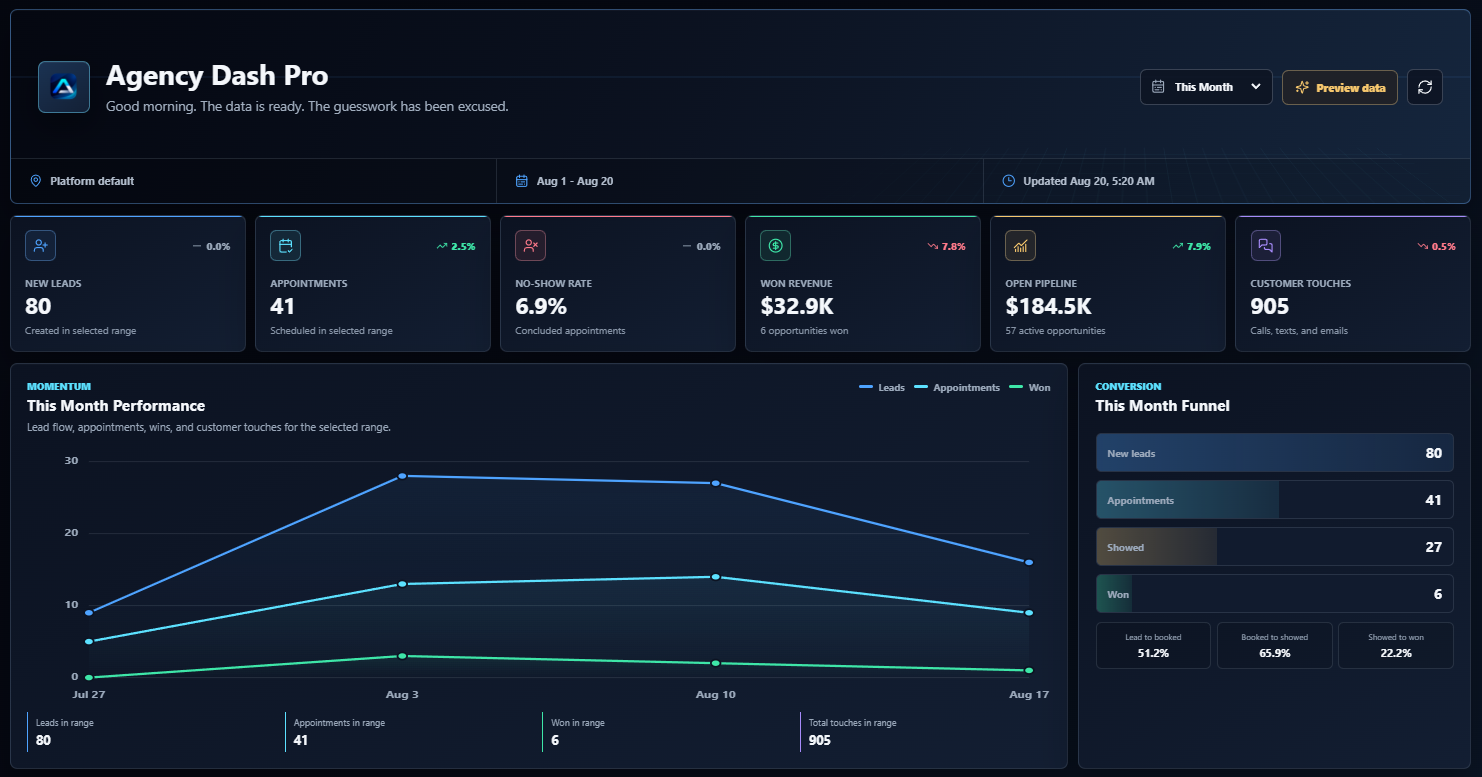
The flagship preview below shows what that looks like: the performance chart and conversion funnel share one organized view. The point is the arrangement and visual hierarchy. These are sample numbers, not results from a customer case study.
Branding is about more than picking a color
Native HighLevel dashboards have theme controls, so changing colors is not exclusive to an external dashboard. The bigger design question is whether the whole screen feels coherent: spacing, labels, charts, and the order in which the information appears.
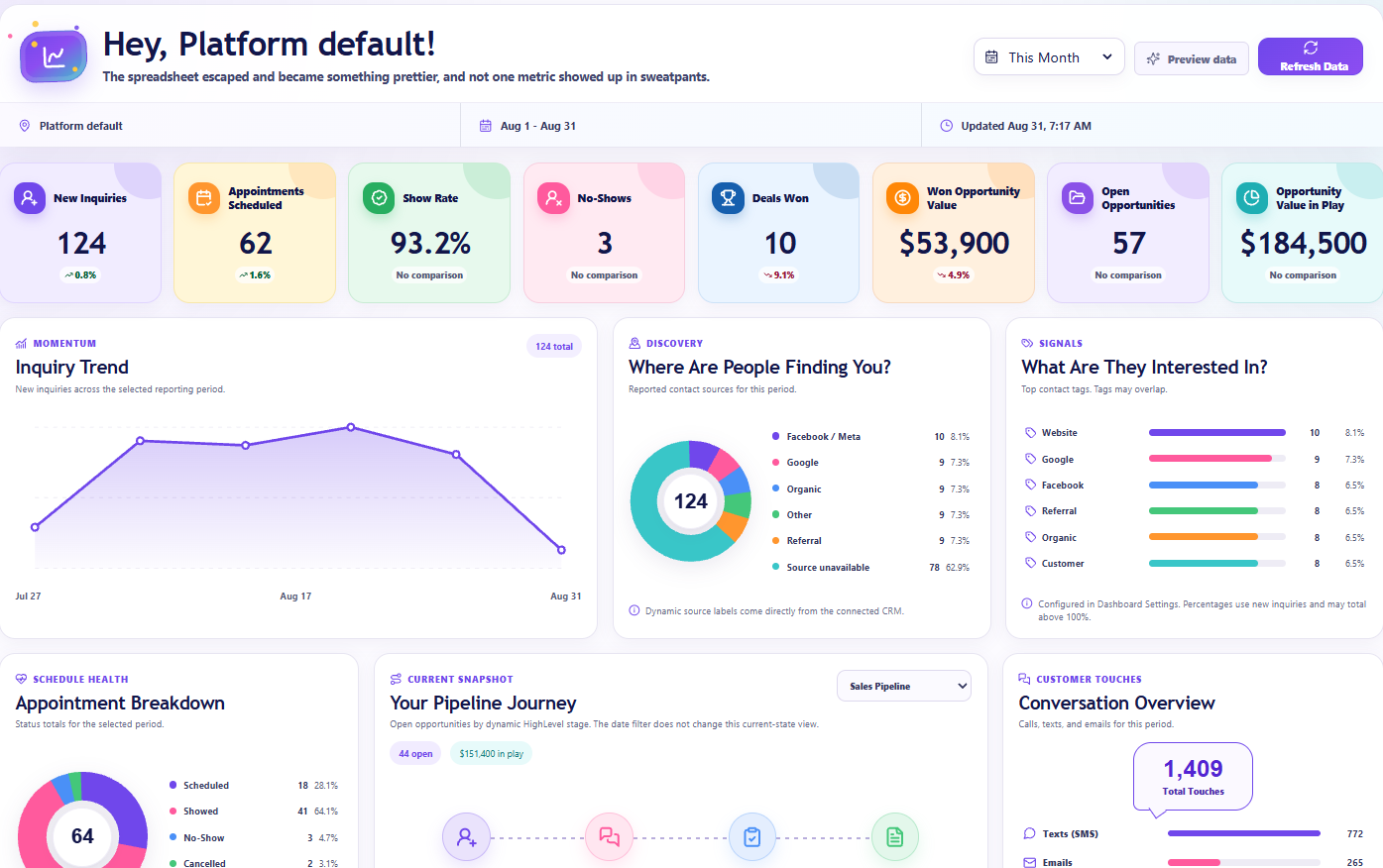
Compare the darker flagship style with Creative Pop’s lighter, colorful presentation. Both show reporting information, but they feel very different. A business that wants a calm reporting overview may prefer one. A team that wants something brighter may prefer the other.
Agency Dash Pro’s dashboard families give you different starting styles, with supported color settings for the connected account. Review the actual template you plan to use rather than assuming every layout has the same customization options. A good branded client reporting dashboard should feel appropriate for the people using it.
The reporting definitions still matter
A nicer dashboard will not fix inconsistent opportunity amounts, forgotten appointment statuses, or a date filter nobody understands. That is true whichever route you choose.
Before deciding on the design, check the questions your client actually asks. Do they want to know about leads, appointments, wins, or communication activity? Do they need a particular field, a detailed custom calculation, or an operational view for a specialist team? Make a short list and check what each option supports.
For a practical starting list, our guide to seven client dashboard metrics explains what those numbers can tell you and where they can be misleading. Choose the reporting view around those questions. A chart deserves space because it answers something, not because there was room for another chart.
Compare the upkeep as well as the setup
A native widget view lives within HighLevel’s dashboard configuration. An external embed depends on its reporting provider as well as the HighLevel account. That is a real difference to consider when deciding who will maintain the client experience.
Agency Dash Pro refreshes reporting through background work and serves the latest published snapshot to the embedded dashboard. That means the displayed view is not a promise of a new CRM request on every browser interaction. Check the refresh state when discussing time-sensitive numbers.
There is also the human side of upkeep. Someone has to keep the account connection healthy, select the right template, and confirm that the reporting view still fits the client. A managed dashboard reduces some layout work, but it does not make the account’s data quality or reporting decisions disappear.
What about using one dashboard across client accounts?
HighLevel also supports custom values in supported dashboard fields, including embed URLs, titles, and text boxes. Its custom-values documentation explains how location-specific values resolve when a dashboard is viewed. Native dashboard reuse is worth considering if that workflow fits your team.
That does not mean every external reporting page automatically knows which client’s information to display. The connection and dashboard destination still have to correspond to the right account. A placeholder in an embed URL is a way to insert a value; it is not a substitute for a working data connection or appropriate access controls.
For Agency Dash Pro, each connected account has its own client-facing dashboard destination. Before handing it over, open the embed in the intended account and verify the dashboard, reporting period, and refresh state. It is a small check that is much easier to do before the client starts asking questions.
A simple way to choose
Start with native widgets when you want to build and adjust the reporting layout inside HighLevel, and the available widgets answer the questions you need to cover. It is a reasonable fit for a team that enjoys having those layout decisions in its own hands.
Consider a curated embed when the reporting requirements fit the template and you want a polished client overview without designing each chart arrangement yourself. The tradeoff is that the template and its provider define the supported reporting experience.
Try the handoff test: open the account as if you were a new client. Can you find the important numbers? Do the labels make sense? Can you tell what period you are looking at? Does the screen feel like a finished part of the service?
That is a more useful test than counting widgets or declaring a universal winner. The best GoHighLevel dashboard customization is the one that gives this particular client a clear place to begin.